
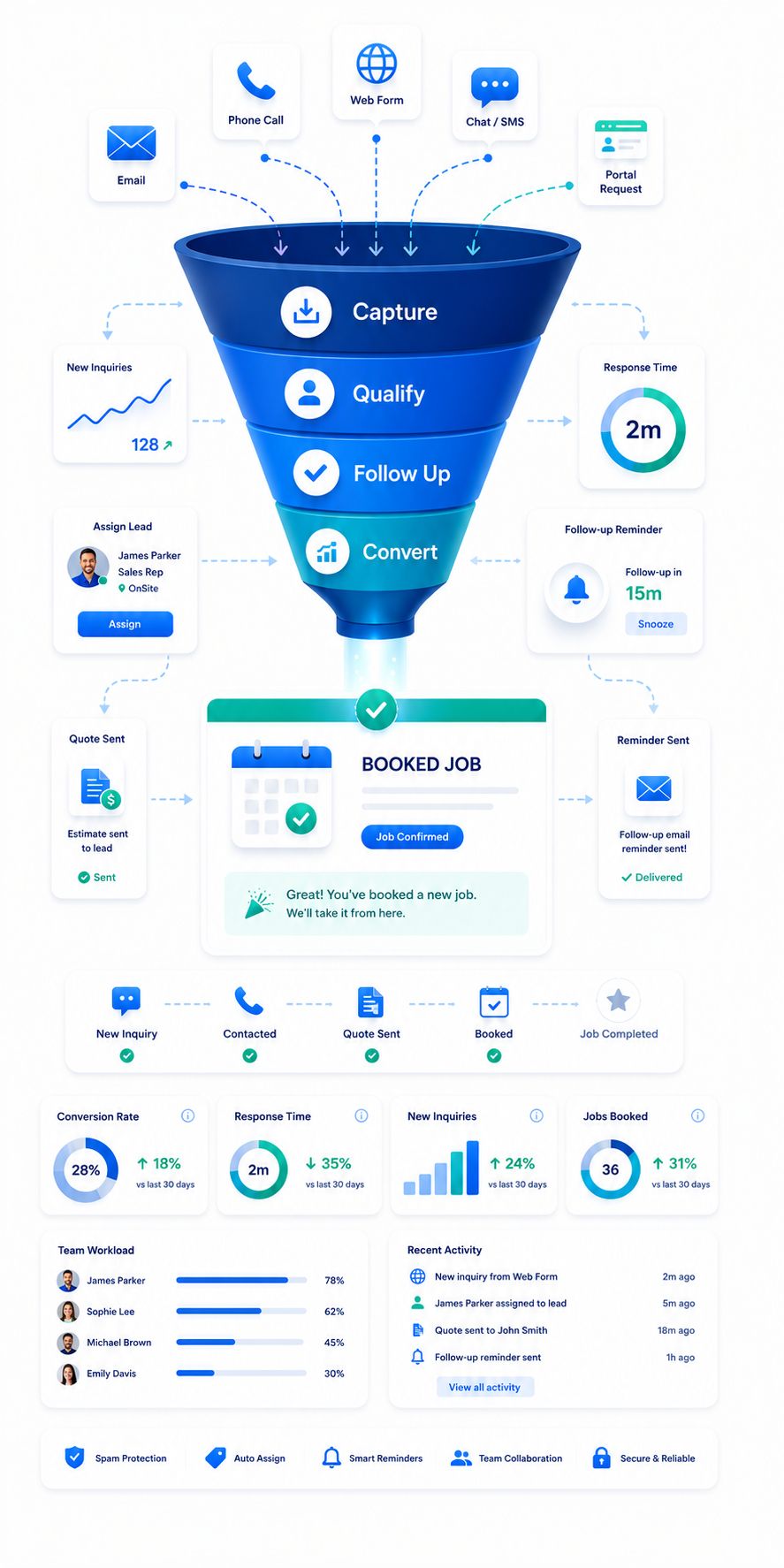
Win more booked jobs by turning every inquiry into a clear next step
Win more service work by making sure every inquiry is captured, understood, followed up, and moved toward the right outcome before the customer books with someone else. OctopusPro gives your team the structure to respond faster, qualify better, and convert more opportunities without relying on spreadsheets, inboxes, sticky notes, or memory.
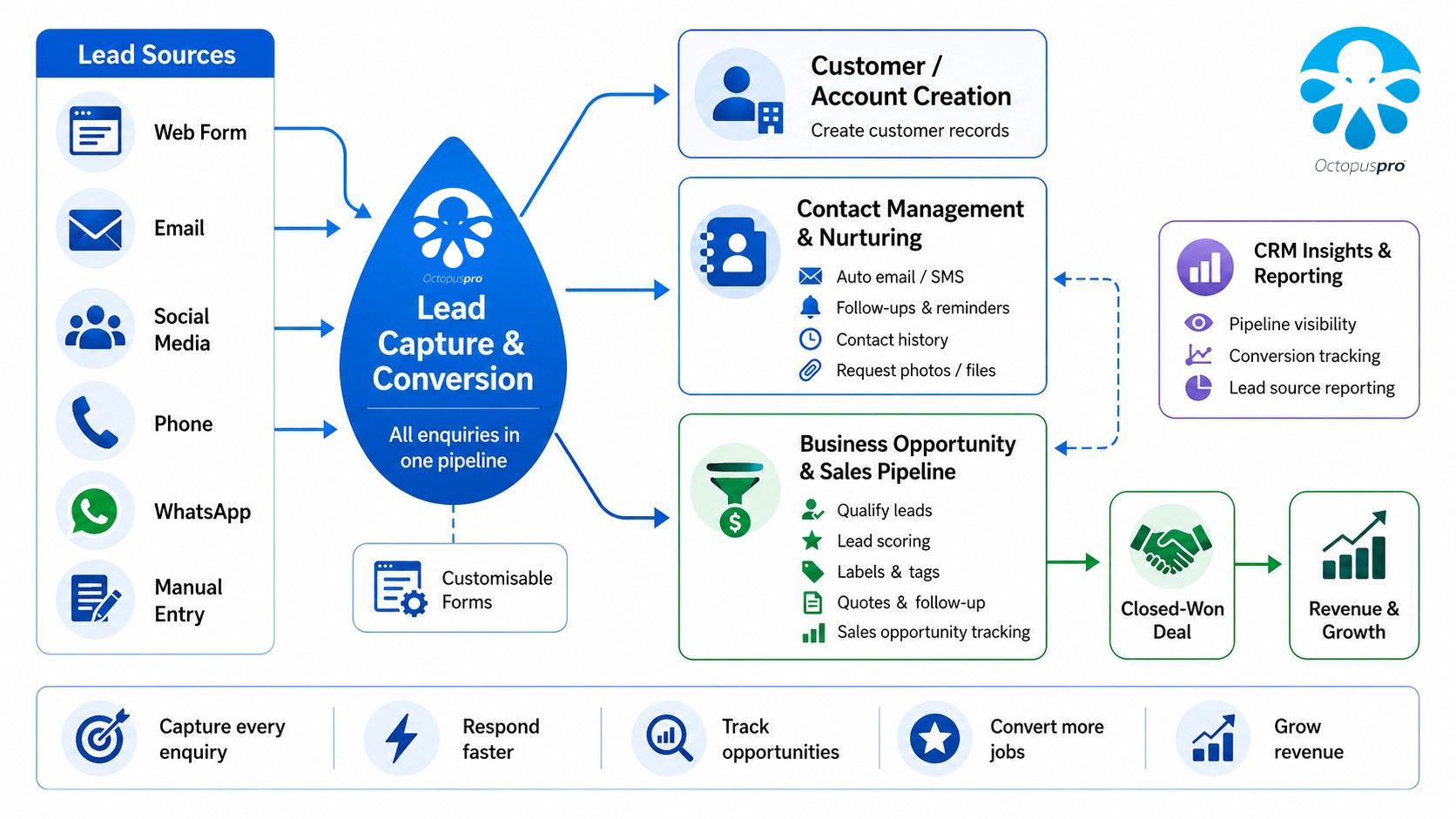
To deliver that outcome, OctopusPro brings website inquiries, customer portal requests, phone calls, emails, social messages, referrals, manual office entries, and connected workflows into one managed pipeline. Each lead can then be assigned, labelled, qualified, discussed, followed up, converted, protected from spam, and measured from the same system.
Fewer missed leads
Capture inquiries from every channel before they disappear across calls, emails, forms, and staff inboxes. Explore the field service lead capture form setup guide.
Faster response
Give staff the context, templates, reminders, and communication tools they need to reply quickly. Learn how to contact customers directly from inquiries.
Better qualification
Collect services, addresses, urgency, source, photos, files, notes, and custom fields before quoting. See how custom fields improve lead qualification.
More conversions
Turn qualified inquiries into quotes, bookings, and future marketing opportunities with less admin. View the inquiry-to-booking conversion workflow.
Stop silent revenue leaks before good leads go cold
Revenue is lost when inquiries are missed, responses are slow, details are incomplete, callbacks are forgotten, source tracking is weak, or quote handovers are disconnected. OctopusPro helps close those gaps by turning every inquiry into a trackable workflow where capture, qualification, response, follow-up, conversion, and reporting are connected from the start.
Leads disappear across inboxes, voicemails, disconnected forms, social messages, and staff memory.
New requests are not always recorded, assigned, labelled, or followed up in the same place.
Website lead forms, customer portal Contact Us submissions, manual inquiry creation, phone/referral/social/email lead entry, and connected inquiry workflows help every opportunity become trackable. Learn how website lead capture forms feed inquiries into OctopusPro.
Customers contact several providers and often book with the first business that responds clearly.
Teams waste time searching for lead details, retyping messages, or asking the same questions again.
Autoresponders, inquiry references, reusable templates, email/SMS/call actions, communication history, and customer-profile logs help every response feel faster and more professional. Learn how to manage customer contact from inquiries.
Pricing stalls when photos, addresses, service requirements, access details, or documents are missing.
Generic forms and unstructured notes create avoidable back-and-forth before staff can quote or schedule.
Service selection, categories, custom fields, multi-address capture, upload prompts, attachments, comments, and service-specific questions help staff qualify leads earlier. Use custom fields to collect better lead details.
Good leads go cold when callbacks, quote follow-ups, and missing-information requests rely on memory.
Owners, due dates, statuses, and pipeline priorities are unclear or spread across disconnected tools.
Owners, statuses, labels, follow-up reminders, To Follow queues, discussion notifications, conversion to quote/booking, spam controls, and analytics keep the pipeline organised. Learn how inquiry follow-up reminders keep leads moving.
See captured inquiries inside the actual OctopusPro workspace
See the real workspace early so visitors can understand how captured inquiries appear inside OctopusPro. Staff can review incoming inquiries from one list, check source and status, expand details, and move the next action forward.
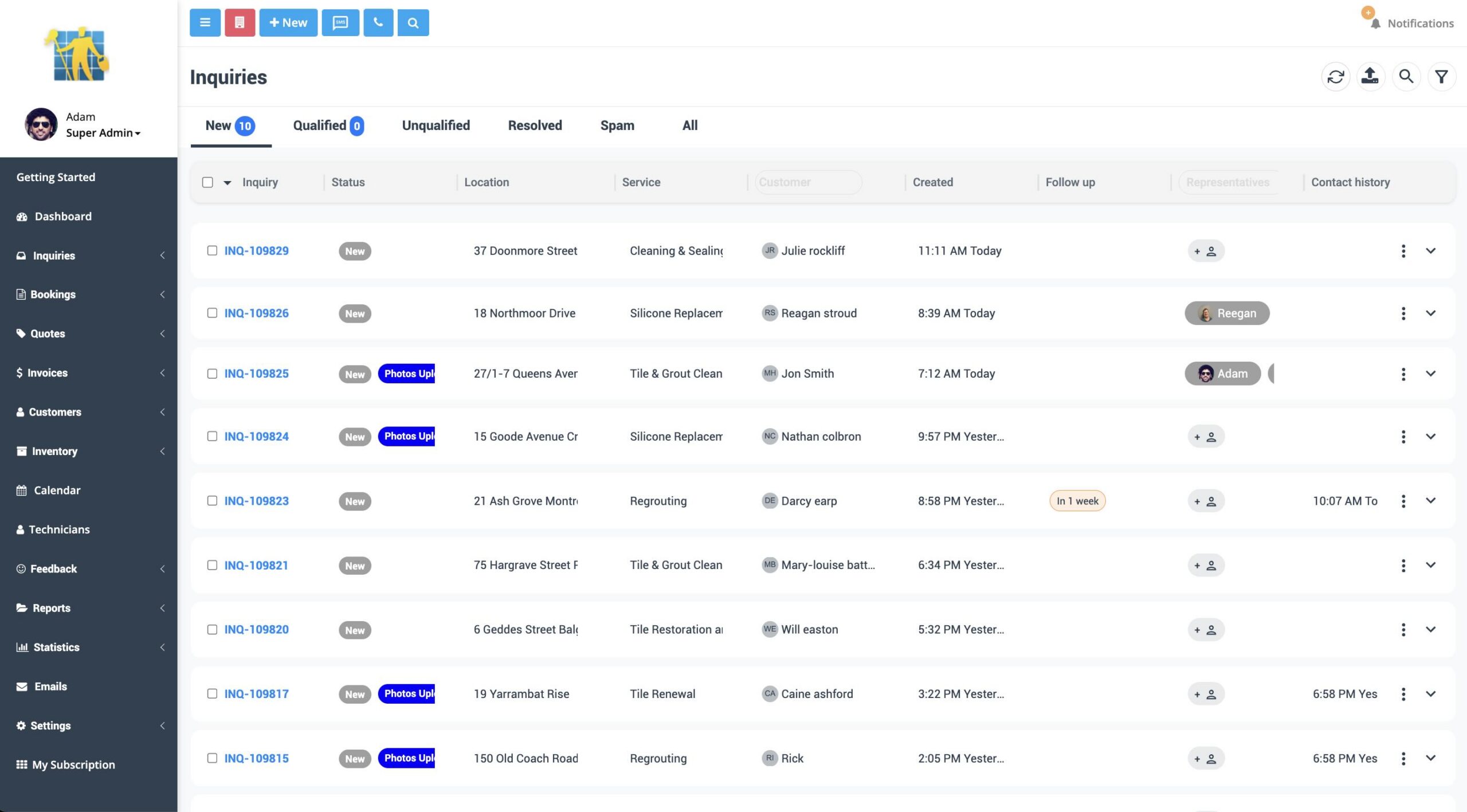
Inquiry listing page: review captured leads from one searchable workspace instead of chasing disconnected forms, emails, calls, and notes.
Inquiry visibility: keep captured inquiries organised so every team member can understand the next step without searching disconnected tools.
Give every lead a clear path from first contact to confirmed work
Capture
Reduce missed opportunities by bringing website, portal, phone, email, social, referral, and manual office leads into one pipeline. Lead capture setup guide.
Qualify
Reduce back-and-forth by collecting service, location, source, urgency, notes, custom fields, files, photos, and supporting details early. View inquiry details.
Respond
Improve speed-to-lead by contacting customers by email, SMS, phone, VoIP, WhatsApp where enabled, templates, and canned replies. Contact customers from inquiries.
Follow up
Stop leads going cold with follow-up reminders, To Follow queues, autoresponders, customer links, and automated reminders where enabled. Lead follow-up reminders.
Convert
Reduce duplicate admin by turning qualified inquiries into quotes or bookings while keeping the inquiry history attached. Convert inquiries into quotes.
Measure
Improve decisions by reviewing source quality, inquiry volume, booking outcomes, service demand, and conversion trends. Inquiry statistics dashboard.
Show staff where every inquiry sits in the sales path
A clear status path helps staff act faster, managers spot bottlenecks, and every lead move from first contact to a measurable outcome.
Captured from your website, portal, phone, email, referral, social, or manual entry.
Staff check services, location, files, custom fields, urgency, and missing details.
The lead has enough context to quote, respond, assign, or request more information.
Staff send the next message, set reminders, or move the lead into quoting.
Confirmed work can move into scheduling, dispatch, and job management.
Outcomes stay reportable for source quality, sales performance, and cleanup.
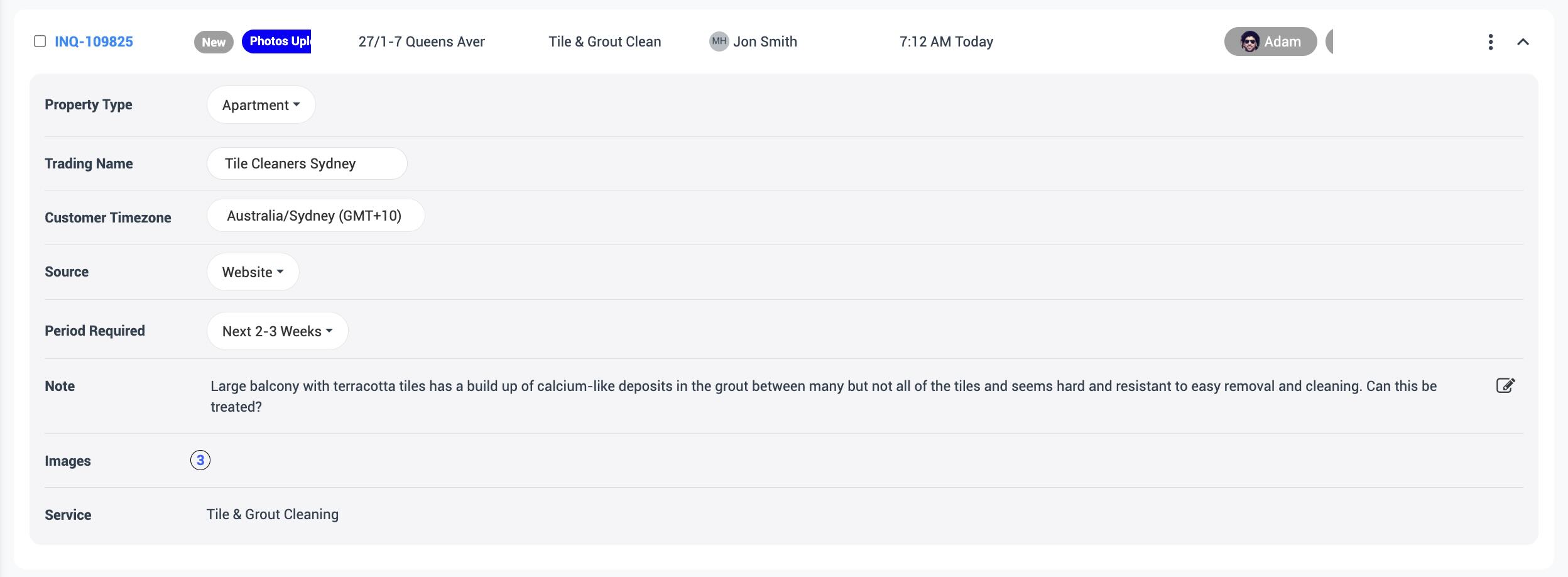
Expanded inquiry view: review key lead details directly from the inquiry list so staff can triage faster without leaving the main workspace.
Review lead details without leaving the inquiry list
Opening more context from the list itself helps staff confirm ownership, spot the next action, and keep follow-up moving with fewer clicks.
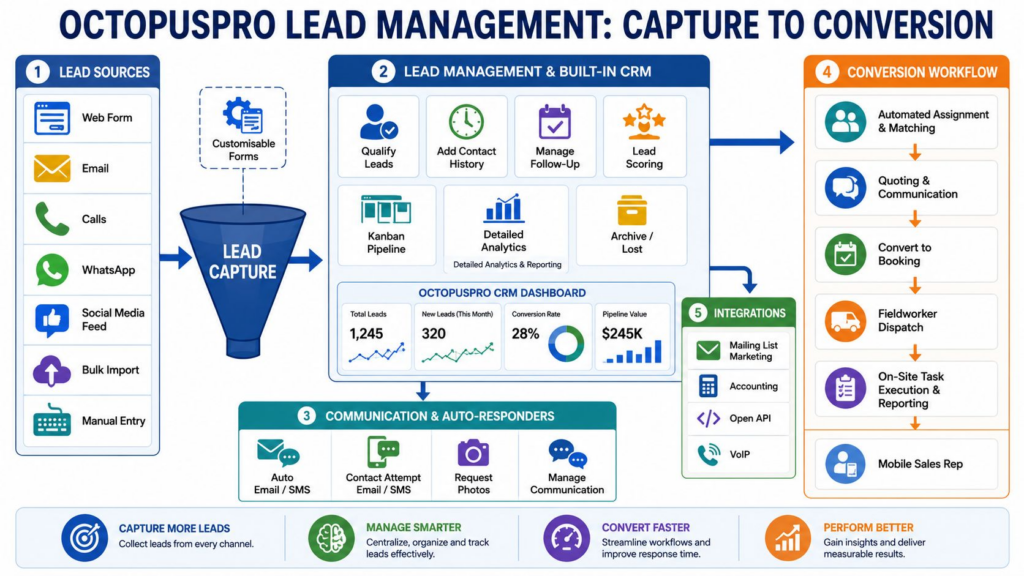
Lead workflow overview: see how first contact, qualification, follow-up, conversion, and reporting connect so leads do not stay scattered across separate channels.
Why service businesses need more than a generic CRM
A generic CRM can store contacts and deals, but service businesses need lead details to flow into quotes, bookings, availability, assignments, customer communication, and reporting without rebuilding the job context later.
Tracks contacts, deals, and notes, often separately from the actual service workflow.
Tracks inquiries through lead capture, qualification, quotes, bookings, scheduling, dispatch, customer portal actions, and reporting. Manage inquiries in OctopusPro from capture to conversion.
Sales teams often need to retype customer, address, service, photo, and note details into another system.
Inquiry details can stay connected when converted into a quote or booking, reducing duplicate admin and missed context. Convert inquiries into bookings with customer and service details connected.
Most CRMs do not naturally understand services, multiple addresses, file uploads, fieldworker availability, or booking outcomes.
Capture service requirements, addresses, custom fields, attachments, lead sources, follow-ups, and post-conversion scheduling context. Use custom fields across lead capture, bookings, quotes, and CRM profiles.

Lead capture process: move inquiries from first contact into a managed workflow where staff can see ownership, status, and next action faster.
Bring every lead source into one organised pipeline
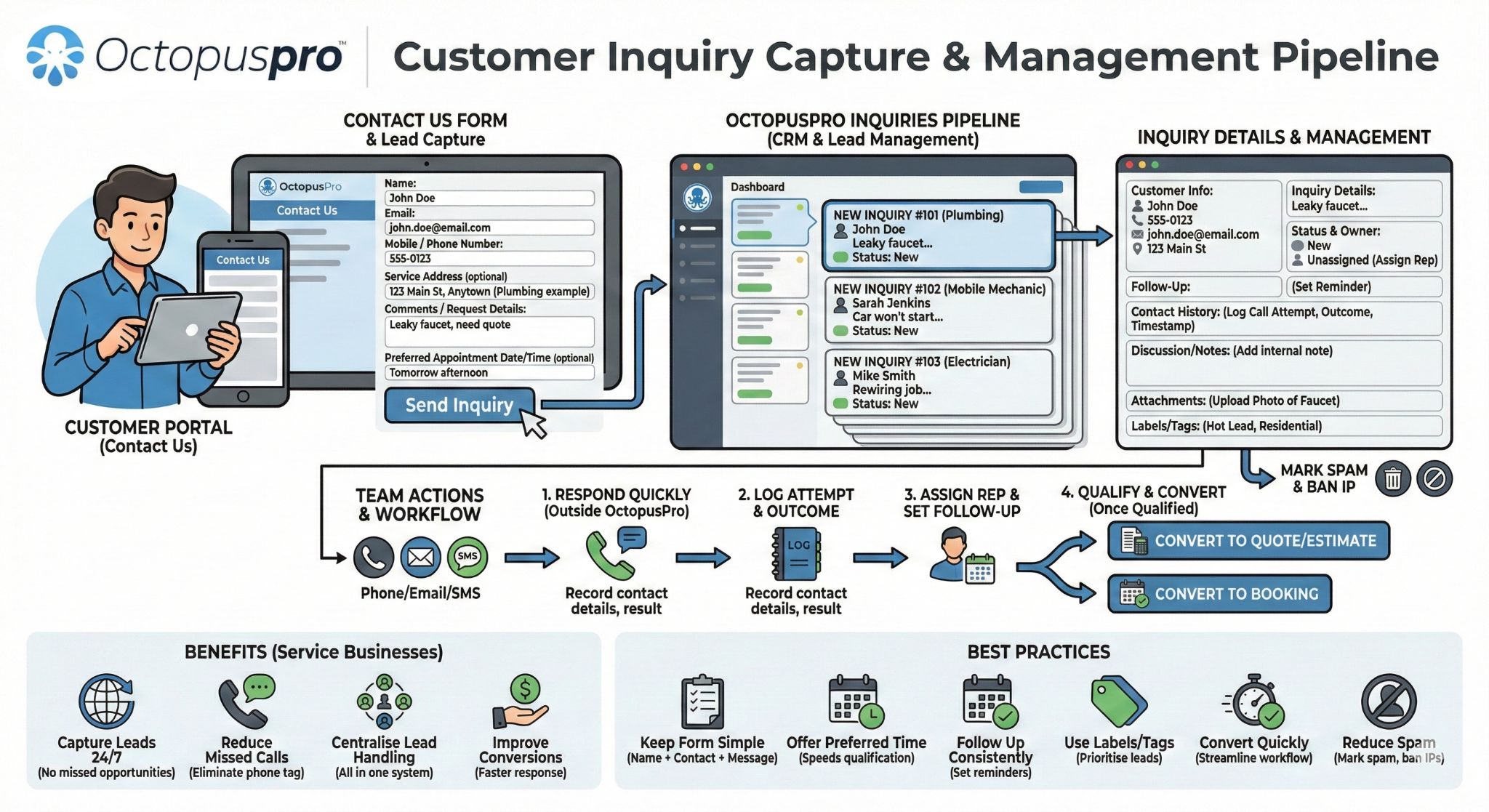
Unified lead sources: website, portal, phone, referral, email, social, and manually entered inquiries can all enter one managed pipeline.
Capture website leads 24/7 from your own site
Win more leads around the clock and reduce manual data entry by letting customers submit inquiries directly from your website.
You can embed a branded lead capture form on your website so customers can submit inquiries 24/7, even when your office is closed. This helps reduce missed opportunities, remove manual copy-and-paste work, and speed up response times. Learn how to set up a website lead capture form for field service inquiries.
Give portal visitors an easy way to ask before they book
Give customers a low-friction way to reach out before they are ready to book, while keeping every request connected to quoting, scheduling, and follow-up.
If you already use the OctopusPro customer portal, you can enable a branded Contact Us page inside the portal for customers who want to ask a question first. Each submission creates an inquiry record that your team can review, respond to, label, assign, and convert into a quote or booking. Learn more about the customer portal Contact Us lead capture form.
Keep phone, email, referral, social, and walk-in leads in the same pipeline
Make sure no lead is lost just because it came through a phone call, walk-in, referral, email, social message, or manual office interaction.
OctopusPro lets office users create inquiries manually so all leads still enter the same structured workflow, regardless of where they came from. Learn how to manually create and qualify new inquiries in OctopusPro.
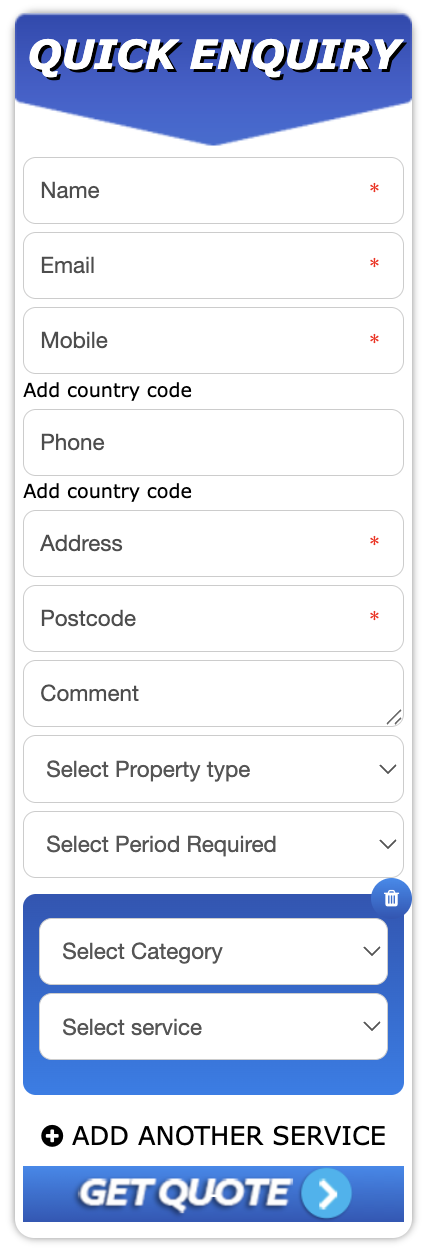
Website lead form example: a branded inquiry form can sit inside a service business website while still feeding captured leads into OctopusPro.
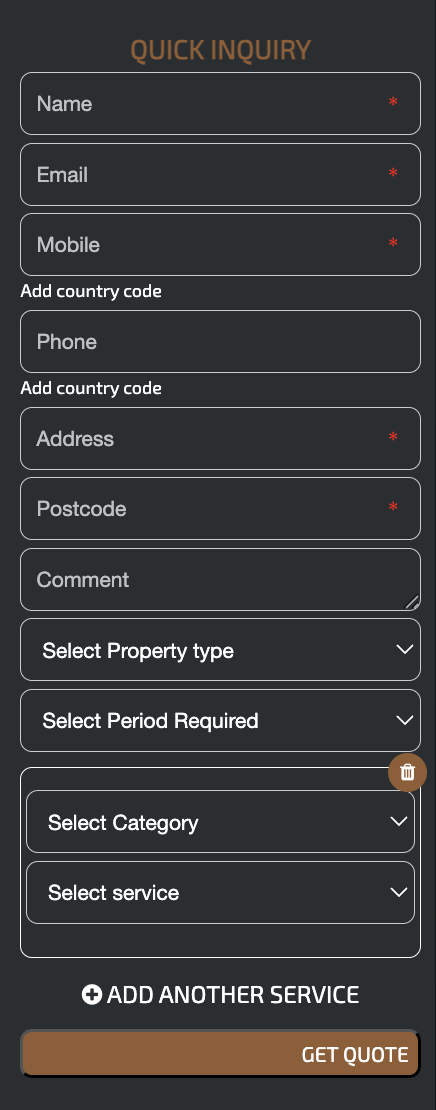
Branded website form example: each trading name or service brand can present a matching form experience while captured leads still flow into OctopusPro.

Manual and offline inquiries: phone, referral, email, walk-in, and staff-created leads can still enter the same managed pipeline.
Use the right path for each customer request
Not every customer is ready to book immediately. OctopusPro lets you capture early interest as an inquiry when details need review, then move qualified work into quoting, booking, scheduling, and delivery when it is ready.
The request needs review first
Use the inquiry workflow when staff need to confirm scope, availability, price, location, access, photos, documents, or customer requirements before the work can be booked.
- Custom quote or assessment needed
- Customer is asking before committing
- Photos, files, or extra details are required
- Office review is needed before scheduling
The customer can confirm a time now
Use the booking workflow when the service, price, duration, location, availability, and booking rules are clear enough for the customer or staff to confirm the appointment immediately.
- Service rules are already defined
- Availability can be shown immediately
- Customer is ready to book a time
- Less qualification is required before scheduling
Quote faster and reduce back-and-forth by collecting the right details upfront
Better lead quality means less back-and-forth, fewer vague inquiries, more accurate pricing, and a smoother path from first contact to confirmed work. OctopusPro delivers this with form controls, service logic, required fields, custom questions, upload prompts, source tracking, and customer opt-in settings that help staff understand the request before they respond. Learn how custom fields support lead capture, bookings, quotes, and CRM profiles.

Lead form setup: configure the lead form so customers provide useful information upfront while your team controls fields, services, custom questions, and branding.
Create a lead form that looks trustworthy and asks the right questions
Make the form easy for customers to complete while giving your team enough detail to qualify, prioritise, and respond without chasing basic information later. Use the lead capture form setup guide to configure fields, styling, and submission behaviour.
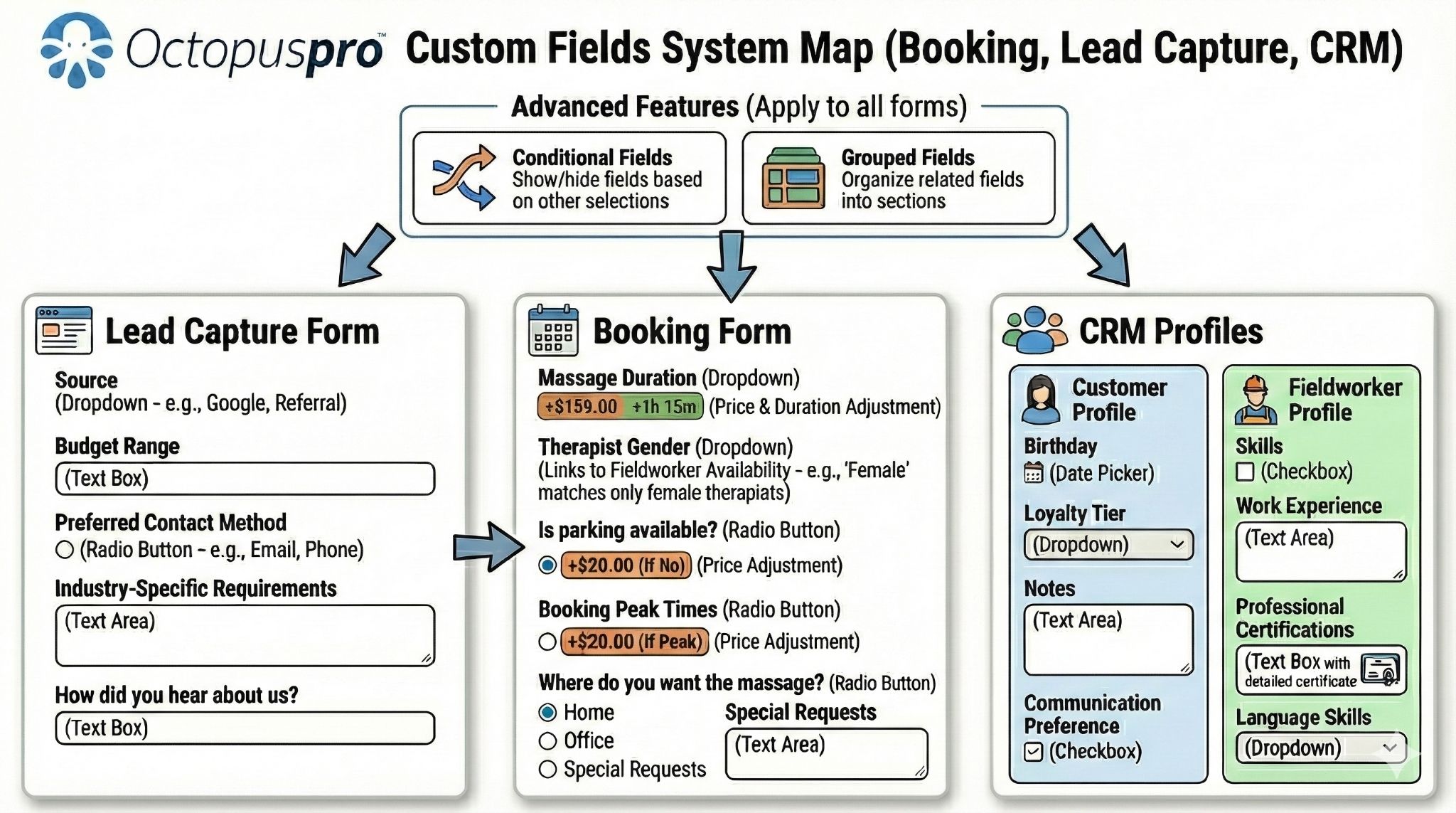
Custom fields summary: show how service-specific and global custom fields help collect the details needed for better qualification, quoting, booking, and CRM records.
Build trust with branded form styling and CSS control
Create a professional first impression by making the inquiry form feel like a natural part of your website and brand.
OctopusPro provides controls to customise the form title, call-to-action button text, button colours, text colours, title colours, and general appearance. You can also use CSS overrides for finer styling control, or disable the standard widget CSS if you want your site theme to control the appearance. Learn more about customising your website inquiry form styling and branding.
Collect the right fields without slowing customers down
Reduce missing information by controlling exactly which fields appear, which fields are required, and how location details are captured.
OctopusPro lets you rename field labels, reorder the form, show or hide fields, and mark selected fields as required. You can also display up to three address fields for pickup/drop-off, multi-site work, removals, event logistics, delivery workflows, or jobs involving more than one service location. When you convert the inquiry into a booking, these addresses can flow into the matching booking addresses. Learn how to configure lead form fields, required inputs, and multi-address inquiry capture.
Understand service needs, urgency, and multi-service requests earlier
Help your team triage inquiries earlier by capturing what the customer needs, how urgent it is, and which service path should be used.
You can show services, group them by category, allow customers to request multiple services in one inquiry, or hide services entirely and treat the form as a general contact form for manual qualification later. You can also capture a preferred timeframe or urgency using the Period Required field, such as ASAP, this week, or next month. Learn more about service categories, multiple-service lead capture, and preferred timeframe settings.
Ask service-specific questions only when they improve qualification
Improve quote accuracy by collecting the details your team needs for quoting, scheduling, and service delivery.
OctopusPro supports both service-specific custom fields and form-wide global custom fields. Use them to collect property type, access conditions, urgency, measurements, budget range, equipment details, site photos, service-specific requirements, or universal qualification questions. These structured details can support lead capture, quotes, bookings, and CRM profiles. Learn how to use custom fields for lead capture, bookings, quotes, and CRM profiles.
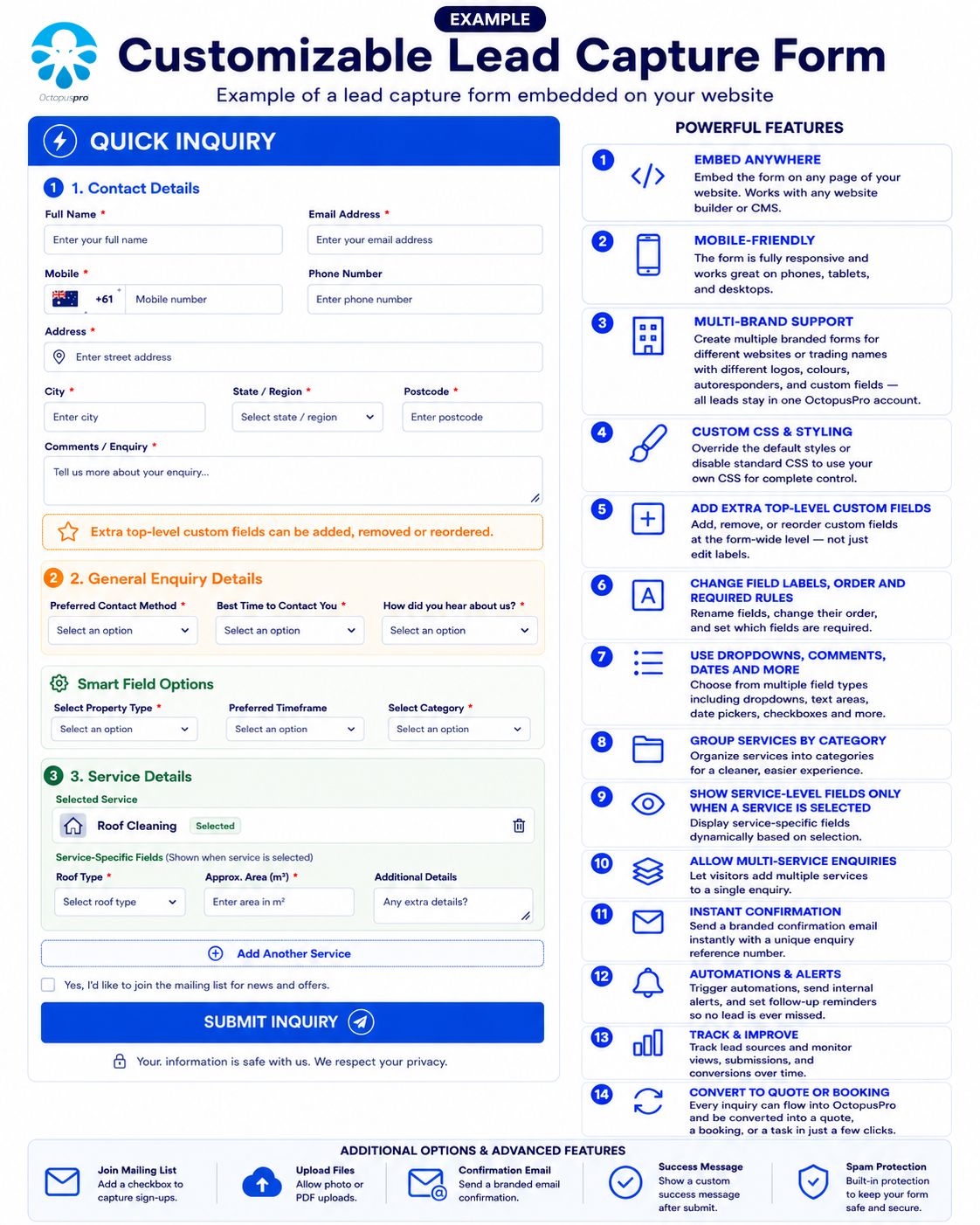
Customisable lead capture form example: show how branded form styling and configurable fields create a more professional inquiry experience while collecting the details staff need before follow-up.

Give staff visual proof before quoting or scheduling
Quote and scope work more accurately by collecting visual evidence, plans, dimensions, access details, and supporting documents before the job is scheduled.
OctopusPro allows staff and, where enabled, customers to attach files and photos to inquiries. You can also add comments to uploaded photos and tag them to the relevant service when an inquiry includes multiple services. This keeps attachments organised and makes quoting, scoping, and handover easier for the whole team. Learn how to attach files and photos to inquiry records.

Files and photos: attach photos, files, comments, and supporting documents to improve quote accuracy and reduce avoidable back-and-forth before scheduling.
Give managers a clear view of lead ownership, follow-up, and outcomes
See who owns each lead, what needs action next, where it came from, and whether it turned into revenue — without chasing staff for updates.
Everything managers need in one compact view
Use inquiry details, filters, reminders, communication history, and reporting to monitor ownership, overdue actions, source quality, and conversion outcomes from one workflow.
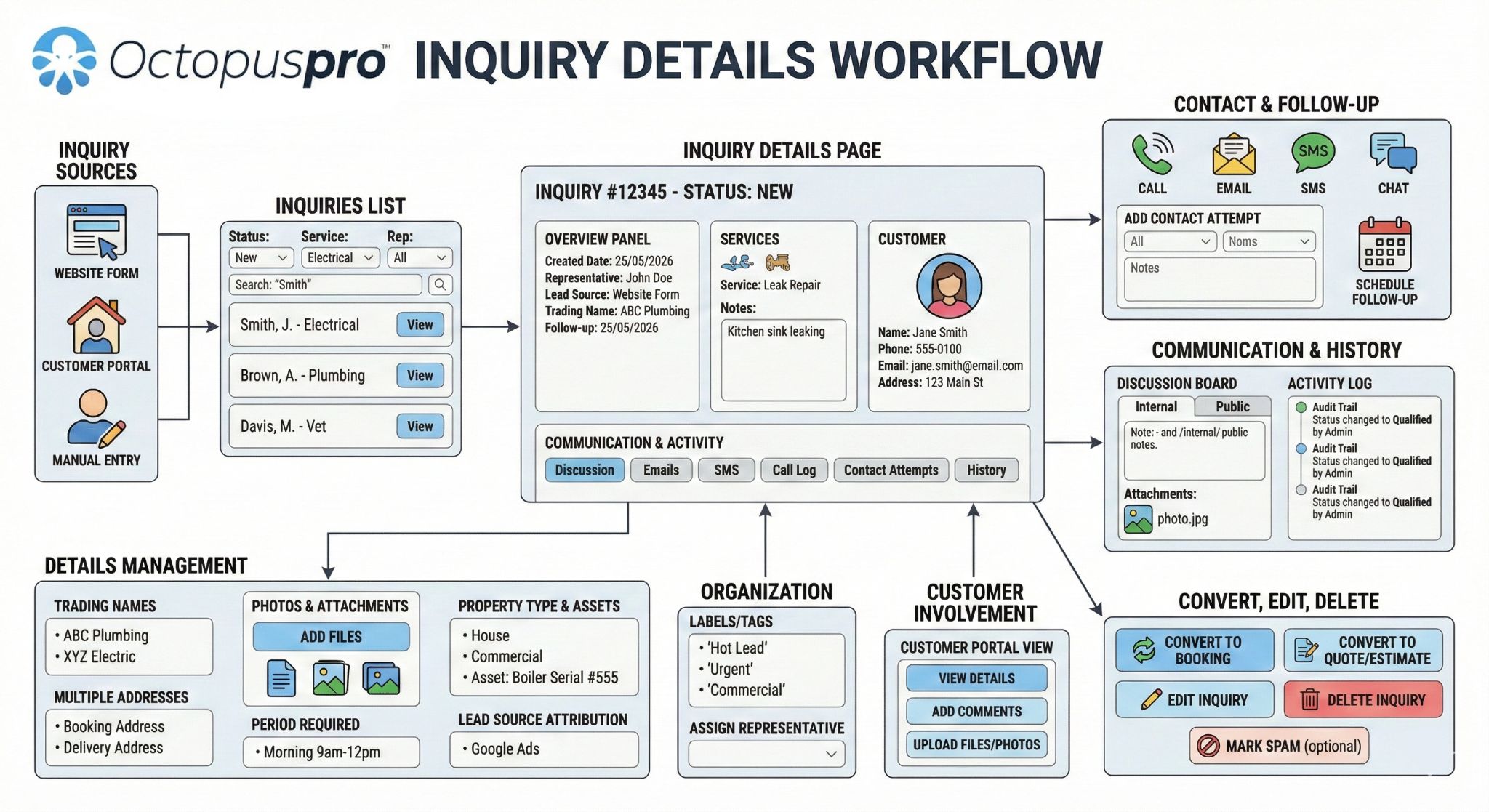
Keep every lead record organised, owned, and ready for the next action
Give staff one reliable workspace for customer details, service requirements, addresses, lead source, owner, status, labels, reminders, notes, files, photos, communication history, discussion history, activity history, and related customer records.
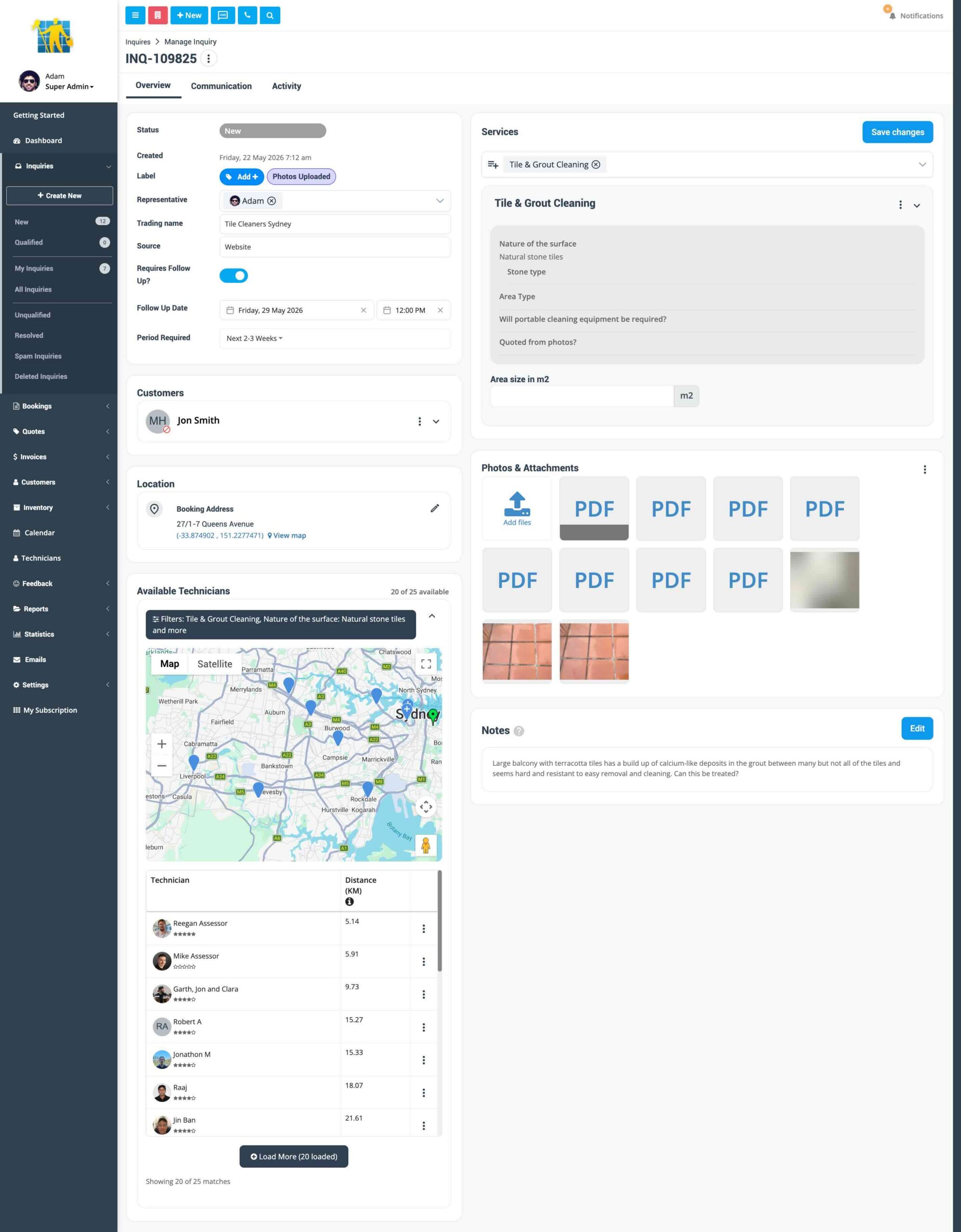
Inquiry details page: review the full lead record, update details as new information arrives, and keep every handover connected to the same source of truth.
Find the full context without hunting through notes
Staff can quickly review customer information, requested services, addresses, inquiry owner, lead source, notes, files, photos, communication history, discussion history, activity history, and related customer assets where your workflow uses them.
Use status for pipeline stage and labels for segmentation
Status shows where the lead sits in the lifecycle, such as new, qualified, resolved, spam, or converted. Labels classify priority, customer type, source, campaign, value, sales intent, or internal routing without forcing staff to read every note.
See how office users update inquiry details as leads progress.
Prioritise the lead segments that matter most
Apply one or more labels, create nested parent and child labels, filter with AND/OR logic, exclude selected labels, and create labels directly from the inquiry workflow. Common examples include hot lead, warm lead, needs photos, commercial, VIP, quoted, follow-up required, and awaiting customer reply.
Learn how to add inquiry labels and tags for segmentation and filtering.
Support multiple brands without losing central control
Present the right brand, form, communication style, and customer experience while still managing leads centrally inside one OctopusPro account.
If you operate multiple trading names or service brands, you can capture and manage leads under the correct brand. This helps keep forms, customer communications, and follow-up workflows aligned with the right trading name while still being managed centrally by your team. Learn more about trading names and multi brand management.
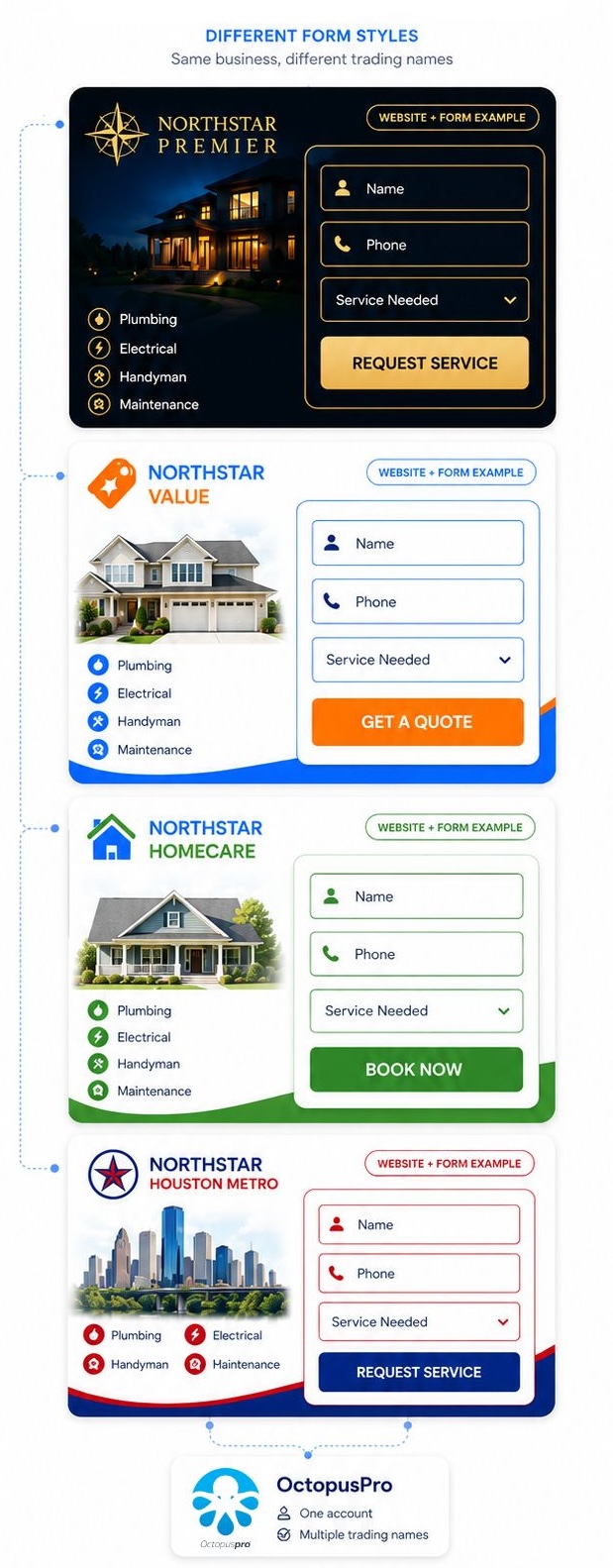
Branded inquiry form example: different service brands can use the same lead capture workflow while matching their own website and trading name.
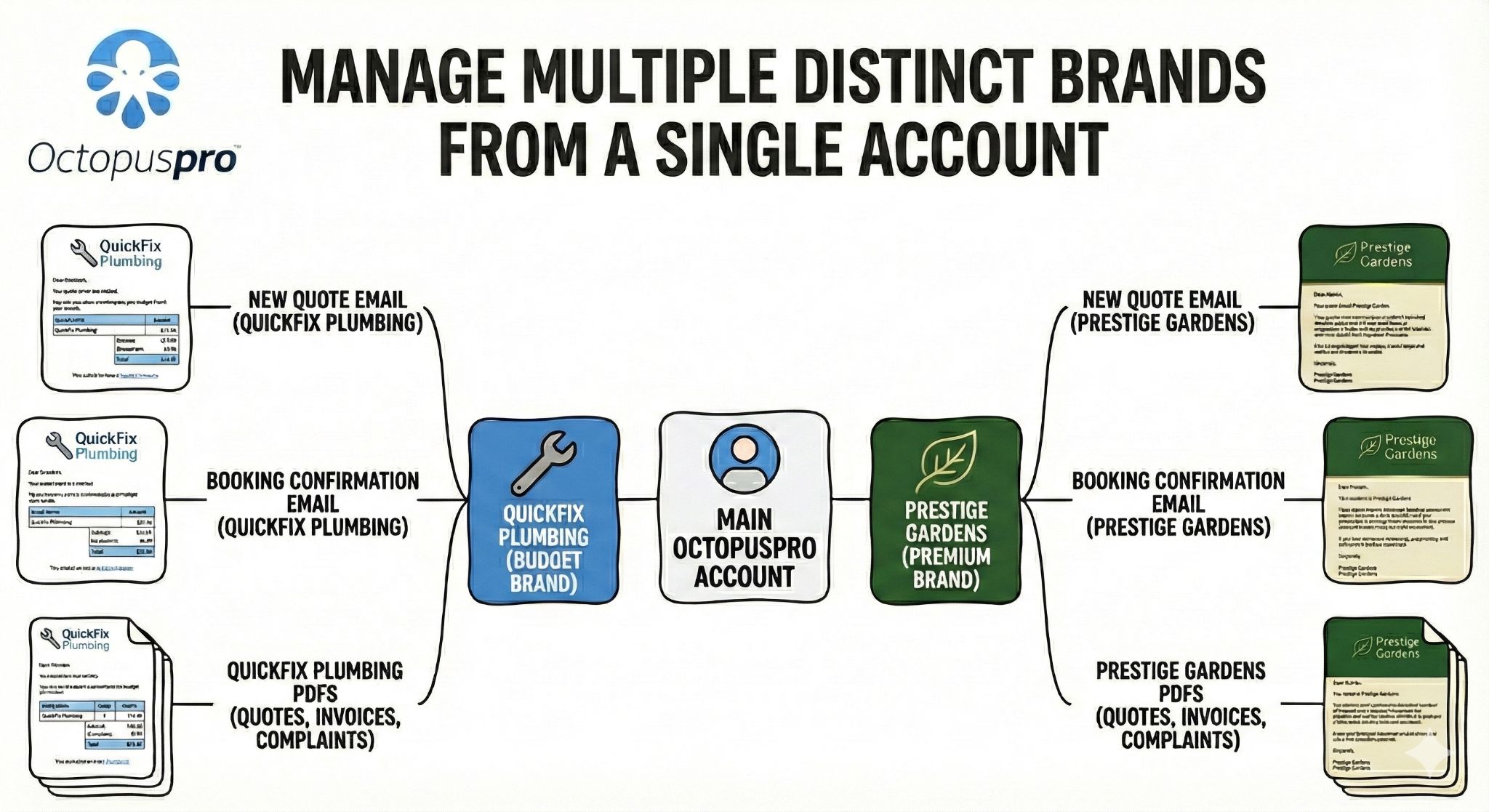
Trading name and brand control: manage branded inquiry workflows while keeping lead records, follow-up, and reporting centralised.
Respond faster and sound more professional with every customer
Speed-to-lead matters, but speed alone is not enough. Your team also needs context, templates, history, permissions, and internal collaboration so every response feels professional and informed.

Contact customer popup: contact customers directly from the inquiry workflow so staff can respond without switching between disconnected tools.
Reduce response delays with email, SMS, calls, and messages from the inquiry
Help staff act immediately without jumping between separate tools or losing the context of the customer’s request.
Your team can contact customers directly from the inquiry list or inquiry details page using quick communication actions. Send emails, SMS messages, make calls, use VoIP where enabled, and communicate through WhatsApp where enabled. Learn more about email, SMS, calling, and contact management from inquiries.
Make every follow-up informed with complete contact history
Give every staff member instant context before they follow up, so customers do not need to repeat themselves.
Email, SMS, call activity, contact attempts, and communication logs can stay tied to the inquiry and the broader customer profile. This gives staff context across future inquiries, bookings, quotes, invoices, and support interactions. Learn how to manage inquiry contact history and communication actions.
Reply faster with reusable templates, canned responses, and placeholders
Reply faster and more consistently by giving staff reusable messages for common lead situations.
Use templates and canned responses for new inquiries, follow-up messages, photo/document requests, quote follow-ups, next-step explanations, and customer updates. Placeholders and merge fields help personalise messages while keeping wording consistent across your team. Learn how canned responses and message templates speed up replies and use template placeholders for personalised customer messages.
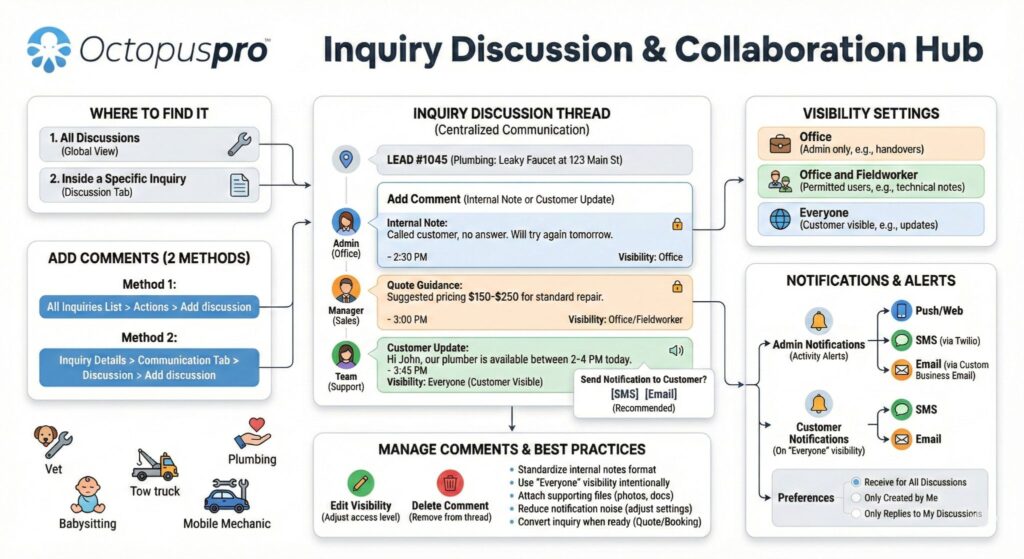
Make handovers clearer with internal notes and inquiry discussions
Keep internal collaboration tied to the lead record so handovers are smoother and decisions are easier to audit.
OctopusPro includes a discussion area within each inquiry so office staff can post internal staff-only notes, share qualification updates, attach files, post customer-visible updates where appropriate, send SMS or email notifications when a visible customer update is posted, and control who receives discussion notifications and through which channels. Learn how to manage inquiry discussions, internal notes, and customer-visible replies.
Reduce missed updates with inquiry notifications and alerts
Reduce missed handovers by helping staff know when an inquiry needs attention.
Notifications can help staff know when inquiry discussions are updated, when a customer-visible reply needs attention, when another team member has added important qualification context, or when a new response affects the next sales step. Learn how field service notifications, discussions, and SMS alerts support faster responses.
Protect sensitive lead actions with role-based permissions
Support larger teams by controlling who can perform sensitive actions during the lead process.
Role-based permissions help control who can contact customers, view communication logs, access call records, manage messages, delete records, or post customer-visible replies. This reduces mistakes while still giving staff the access they need to move leads forward. Learn more about role-based access control and user permissions.

Communication history: keep messages attached to the inquiry so staff can reply faster without losing the history behind each customer request.
Lead nurturing: use instant responses and nurturing workflows to keep promising leads active until they are ready for a quote or booking.
Keep promising leads warm until they are ready to book
Follow-up discipline protects revenue: your team can keep the next action visible, follow up when the customer is ready, and avoid losing opportunities because nobody remembered to call back. Learn how lead follow-up reminders and the To Follow queue work.
Keep next actions visible with follow-up reminders and the To Follow queue
Follow-up becomes more reliable when the next action is visible in the workflow instead of stored in a spreadsheet, inbox flag, sticky note, or staff member’s memory. OctopusPro lets you flag an inquiry as requiring follow-up, set the next action date and time, view due inquiries in the To Follow list, and quickly edit or clear reminders directly from the inquiry list without opening every record.
Where automations are enabled, email or SMS reminders can help keep promising leads active so follow-up does not depend entirely on memory or spreadsheets. Automated reminders should also be visible in communication history or automation logs so staff can see what was sent and when. Learn how to manage inquiry follow-up reminders and the To Follow queue.

Let customers provide missing details without repeated calls
Reduce back-and-forth by letting customers review their inquiry and provide missing information through a controlled self-service experience.
Customers can interact with their inquiry through the link they receive in an inquiry confirmation email or SMS. Depending on your setup, they may be able to review inquiry details, upload files, and provide extra information needed for accurate quoting and smoother scheduling. Customer-facing inquiry access can be controlled through portal settings, so businesses can decide what customers can view, upload, update, or action through the portal experience. Learn more about customer portal permissions and self-service controls. Learn more about viewing inquiry details and customer-facing inquiry access.
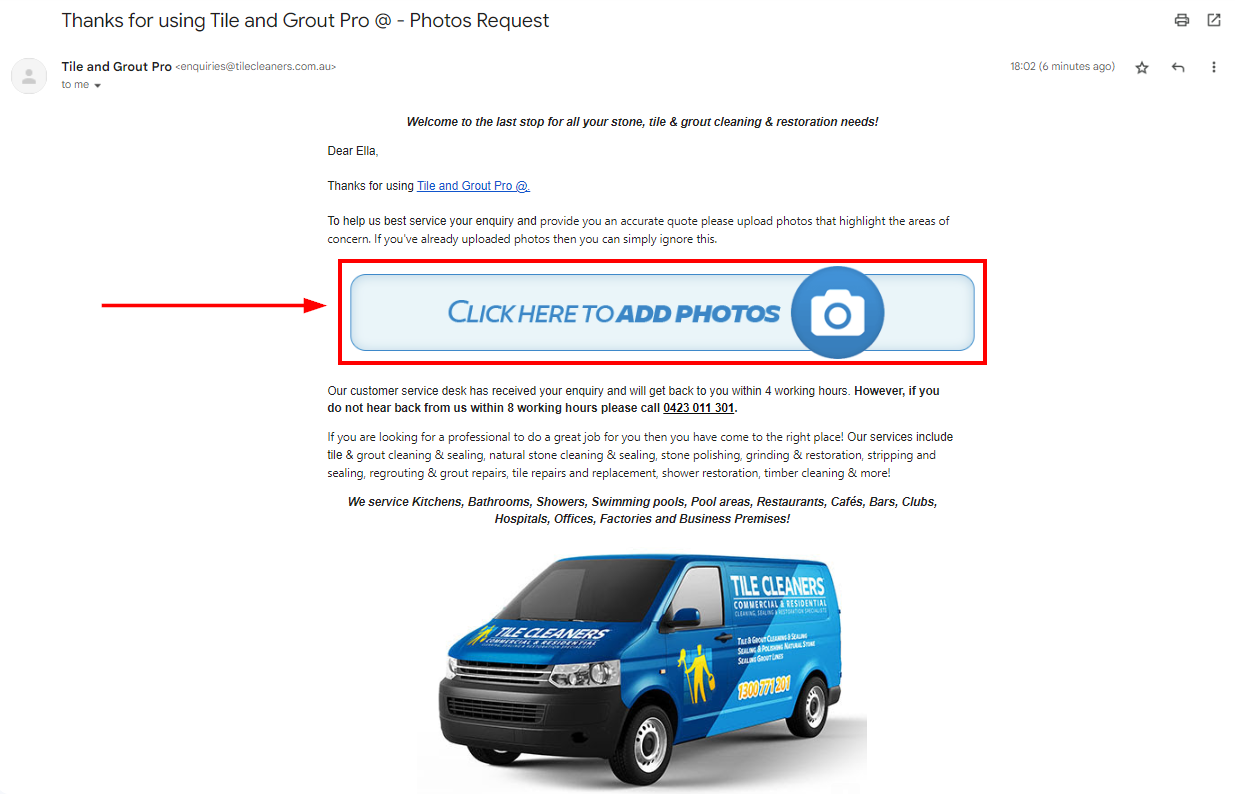

Instant response, autoresponders, and lead nurturing
Keep promising leads warm by acknowledging inquiries immediately and setting expectations before a staff member manually replies.
OctopusPro helps you send instant acknowledgements, set follow-up dates and times on inquiries, and group due leads into dedicated follow-up views. Your autoresponder can thank the customer, include the inquiry reference, explain next steps, set an expected response timeframe, and request additional photos or documents immediately. Learn more about inquiry autoresponders, confirmation emails, and post-submission upload prompts.

Follow-up queue: give staff a clear process so due callbacks, missing-information requests, and quote follow-ups do not depend on memory.

Next action visibility: keep next actions visible so high-value inquiries remain active instead of going cold after the first response.
Turn qualified interest into quotes, bookings, and confirmed work with less admin
Conversion should feel like a continuation of the lead journey, not a restart. Once a lead is qualified, your team can move it forward quickly while keeping customer details, notes, attachments, communication history, follow-up context, and audit history connected. Use inquiry-to-quote conversion when the customer needs pricing first, or inquiry-to-booking conversion when the customer is ready to proceed. Convert inquiries into quotes or convert inquiries directly into bookings.

Price qualified requests without retyping lead details
Respond to pricing requests faster with the lead details, notes, attachments, and customer context already connected.
Use this when the customer needs pricing before committing. Converting an inquiry to a quote helps your team create a cleaner sales workflow from first inquiry to formal estimate. Once the quote is created, your team can continue the sales process with quote follow-up dates, overdue quote views, email/SMS reminders, and customer accept/decline actions. Customers can review the quote, accept or decline it from the email or customer portal, and, where self-scheduling is enabled, choose an available time without your team manually rebuilding the booking from scratch. Learn how to convert an inquiry into a quote or estimate.

Inquiry-to-quote conversion: convert qualified inquiries into quotes while keeping customer details, services, notes, and attachments connected to the sales record.
Schedule ready-to-proceed work directly from the inquiry
Confirm work faster and reduce booking errors by turning ready-to-proceed inquiries directly into scheduled jobs.
Use this when the customer is ready to proceed and you want to schedule the work immediately. OctopusPro opens the booking workflow with the inquiry information already connected, reducing admin work and helping your team confirm jobs faster and with fewer mistakes. Once converted, the inquiry and booking stay linked, so your office team can move between them for full context and auditability. After conversion, your team can continue into scheduling and assignment using tools such as Availability Finder and Nearby Bookings to reduce conflicts, improve dispatch decisions, and confirm the work faster. Learn how to convert a lead inquiry into a booking.

Inquiry-to-booking conversion: turn ready-to-proceed inquiries into bookings so the team can continue into scheduling, availability checks, assignment, and dispatch.
Keep staff focused on genuine revenue opportunities
A clean pipeline helps staff focus on real opportunities instead of spam, duplicate records, test submissions, and low-value noise. OctopusPro supports that outcome with spam marking, restore controls, IP blocking, low-friction spam reduction, deletion, and cleanup tools. Learn how spam inquiry management and IP blocking protect the lead pipeline.
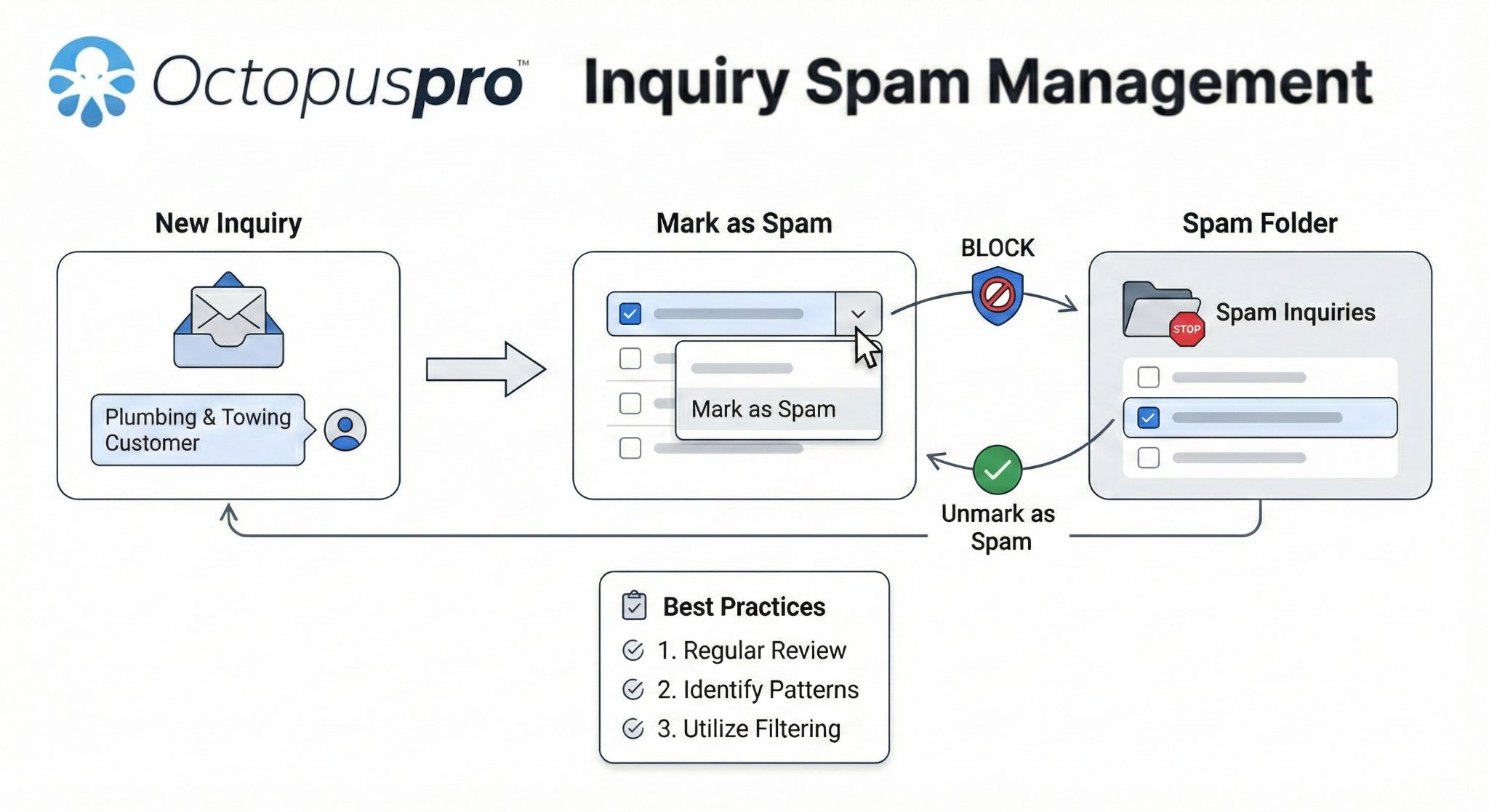
Inquiry spam management: show how OctopusPro helps keep the lead pipeline clean with spam marking, blocked IP addresses, restore controls, deletion, and cleanup visibility.
Remove junk leads without losing restore control
Keep your inquiry list cleaner without permanently losing control of valid leads that were flagged by mistake. You can mark individual inquiries as spam and unmark them if something was incorrectly flagged. Learn how to mark spam inquiries and restore valid leads.
Block repeat spam at the source
Reduce recurring spam at the source by banning the sender’s IP address to block future lead-capture submissions from that origin. You can review the banned IP list later and unblock addresses if needed. Learn more about blocking spam inquiry IP addresses.
Protect lead quality without adding unnecessary friction
Maintain a smoother customer experience while still protecting your pipeline from low-quality and automated submissions. OctopusPro’s inquiry form is designed to help reduce spam without forcing a CAPTCHA into the customer experience. Learn more about spam inquiry management and prevention.
Clean up duplicates and irrelevant records for better reporting
Keep reporting and pipeline views cleaner by deleting duplicates, test data, or irrelevant inquiries. Depending on your system configuration, some deleted inquiries may still be recoverable before permanent removal. Learn how to delete and restore inquiries in OctopusPro.

Pipeline cleanup: keep the sales pipeline clean by separating genuine opportunities from spam, duplicates, test data, and irrelevant inquiries.
Know which sources, services, and follow-up actions are driving growth
Better reporting turns lead management into a management tool, not just a list of inquiries. Managers can see where opportunities come from, which sources produce better work, where follow-up slows down, which services are in demand, and what needs to change to improve conversion. Use the inquiry statistics dashboard to measure lead performance.
Understand demand volume
Track inquiry volume over time and compare today, this week, this month, this quarter, and this year. View inquiry volume and date-based lead statistics.
Invest in sources that convert
Compare website, Google Ads, referrals, phone, social, email, portal, and manual sources by inquiry and conversion performance. Track lead sources and marketing attribution.
Connect lead activity to booking and service outcomes
Review booking status distribution, service accepted, declined, and pending metrics where relevant. Measure inquiry conversion and service outcome trends.
Find conversion bottlenecks before they cost revenue
Identify slow follow-up, weak channels, high-demand services, and opportunities that need better response processes. Explore live reports and analytics for field service performance.

Lead reporting: use inquiry statistics to understand source performance, booking outcomes, service demand, and where follow-up needs improvement.
Launch a practical lead workflow in three steps
A stronger lead process does not need to start with a complex rollout. Start with the capture points that matter most, configure the fields your team needs, then improve follow-up and reporting as the workflow matures.
Embed and connect your lead sources
Add the lead capture form to your website, enable portal inquiries where needed, and make sure phone, email, referral, social, and manual inquiries are entered into the same workflow.
Configure fields, statuses, and follow-up rules
Set the services, questions, required fields, uploads, statuses, labels, owners, reminders, templates, and customer links your staff need to qualify inquiries properly.
Measure, convert, and keep improving
Review source performance, response delays, follow-up activity, quote and booking outcomes, and the patterns that show where your lead-to-booking process can improve.
Stop losing service leads between first contact and booked work
Bring every inquiry into one workflow, respond before leads go cold, and move qualified opportunities into quotes, bookings, and long-term customer relationships. Choose the next step that matches how ready you are to improve your lead-to-booking process.